Docker Part-4
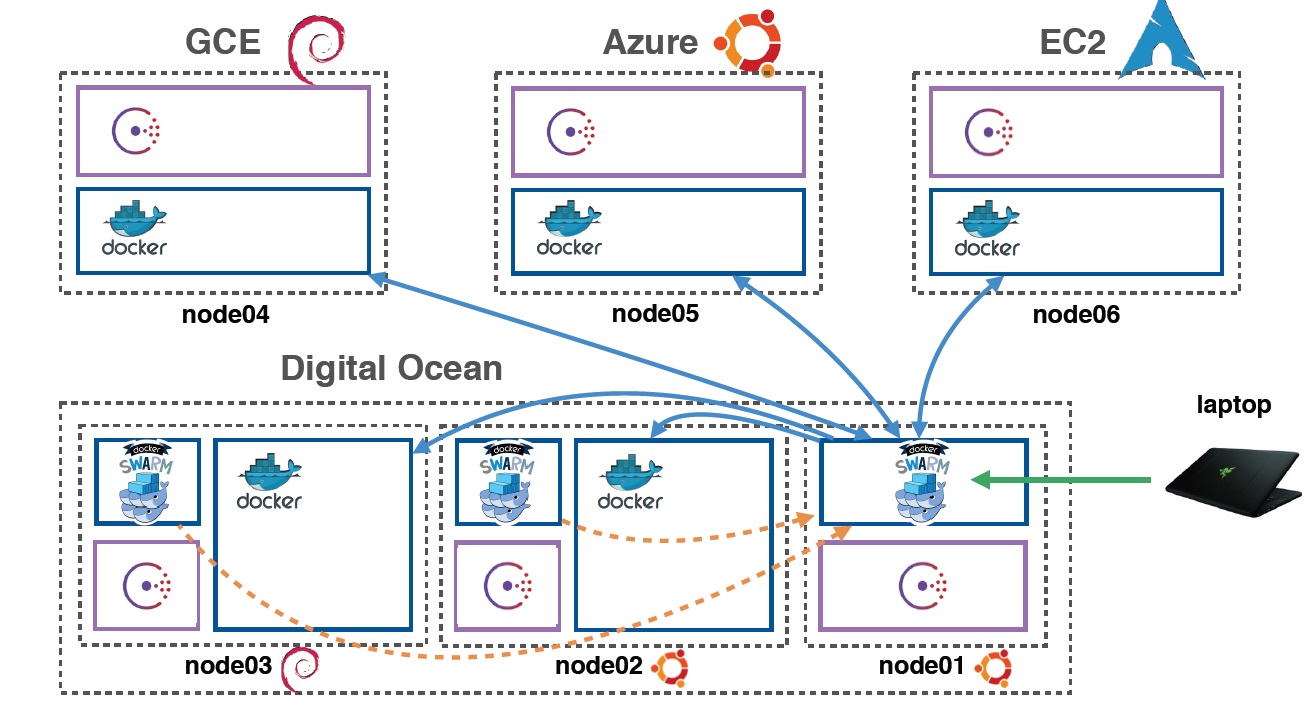
Docker Swarm Visual is a powerful tool that makes cluster management simple and efficient.
1. Prerequisites
-
At least 2 or 3 servers (can be virtual or real)
-
Network access between the machines
-
Linux-based OS (e.g., Ubuntu)
2. Terminology Quick Look
| Term | Description |
|---|---|
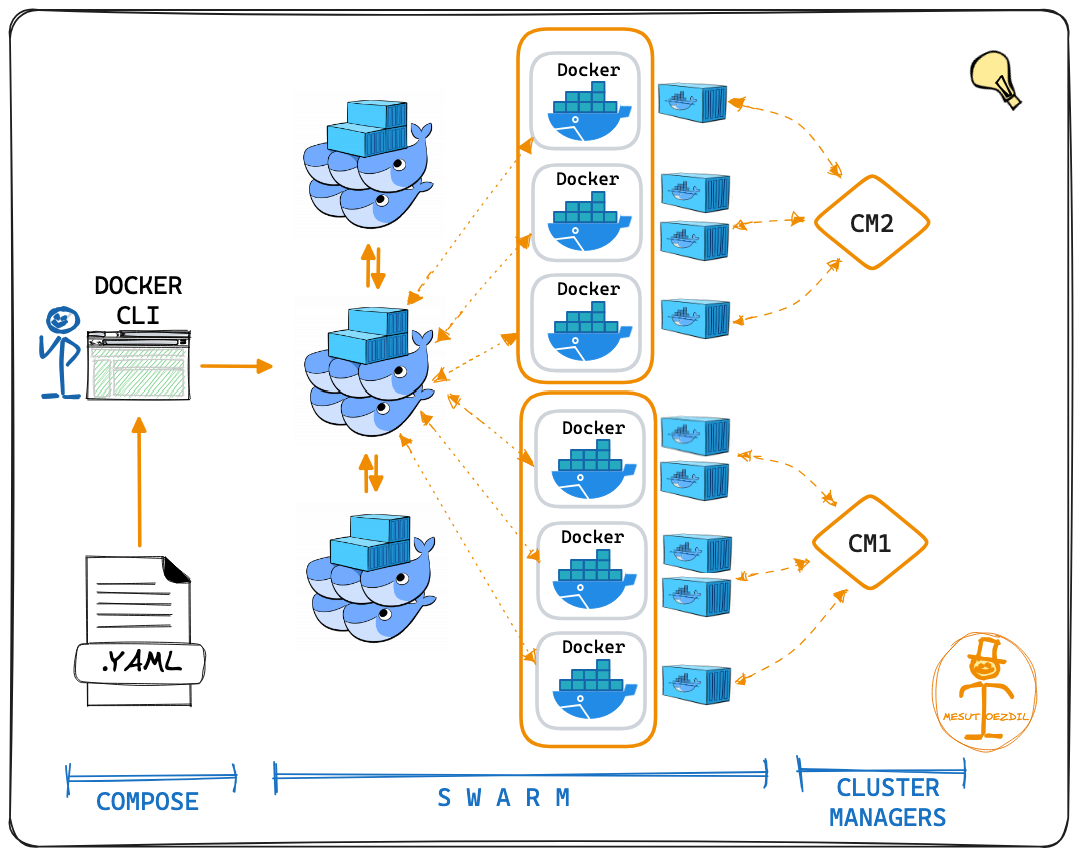
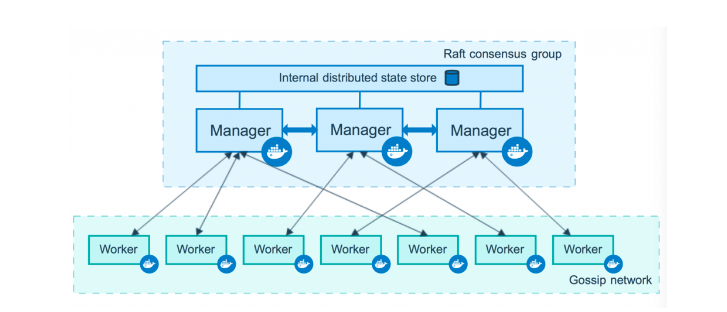
| Manager Node | Controls the swarm cluster (scheduler, orchestration) |
| Worker Node | Executes the containers/services |
| Service | Task definition to be run on the swarm |
| Task | A container running as part of a service |
3. Step-by-Step Setup
Step 1: Initialize the Swarm (on Manager Node)
bashdocker swarm init --advertise-addr <MANAGER-IP>
Step 2: Join Worker Nodes to the Swarm
Run the given command (from manager output) on each worker node:
bashdocker swarm join --token <token> <MANAGER-IP>:2377
Run this on all worker nodes.
Step 3: Verify Nodes (on Manager Node)
bashdocker node ls
Shows all nodes and their status (Leader, Reachable, Active).
Step 4: Deploy a Service
bashdocker service create --replicas 3 --name web nginx
This will run 3 NGINX containers across the swarm.
Step 5: Check Service Status
service ls # Lists running services
Step 6: Scale the Service
service scale web=5
Increases replicas to 5.
Step 7: Remove the Service
service rm web
What It Does
-
Shows real-time container placement on each node
-
Displays manager and worker nodes
-
Updates automatically when containers are added/removed
How to Deploy Swarm Visualizer
Step 1: Create an Overlay Network (if needed)
Step 2: Deploy Visualizer on the Manager Node
--publish=8080:8080
--constraint=node.role==manager
What this does:
-
--publish=8080:8080: Exposes it on port 8080 -
--constraint=node.role==manager: Ensures it only runs on manager node
Step 3: Access the Visualizer UI
-
Open browser:
http://<MANAGER-IP>:8080
You will see a graphical view of:
-
All nodes in the cluster
-
Running services (containers) with color-coded boxes
What It Looks Like
css
[ Manager Node ]
├── nginx-task-1
└── nginx-task-2
[ Worker Node 1 ]
├── nginx-task-3
[ Worker Node 2 ]
└── nginx-task-4
Each container appears as a small box under a node.
1. What Is a Service?
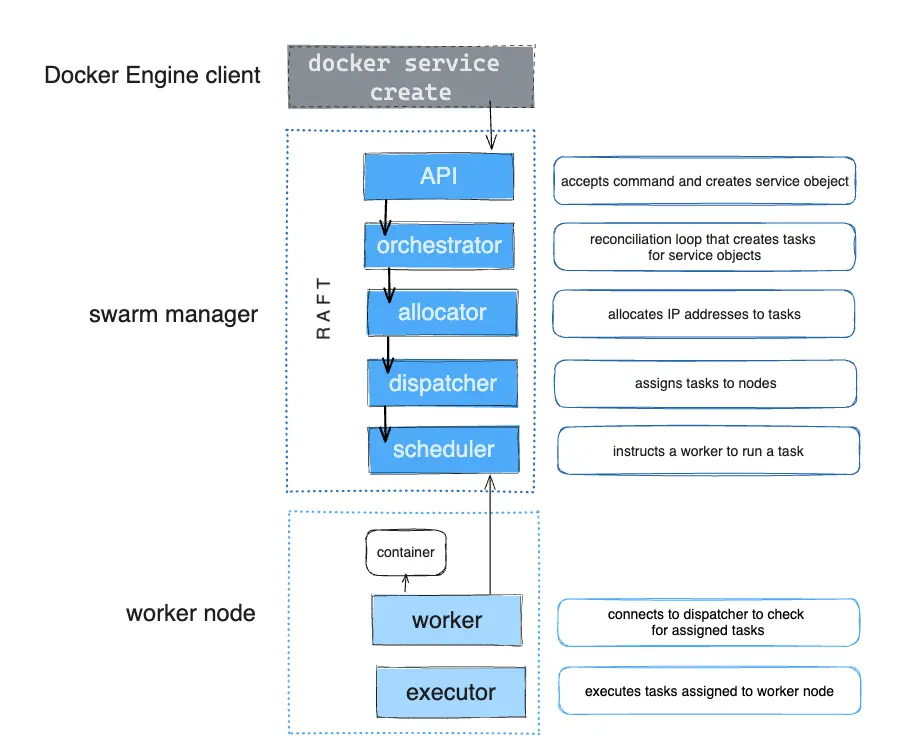
A Docker Swarm service ensures that the desired number of replicas of a container is always running in the swarm. It also manages:
-
Scaling
-
Load balancing
-
Container placement
-
Rolling updates
2 Types of Services
| Type | Description |
|---|---|
| Replicated | Run a specific number of container replicas (e.g., 5 nginx containers) |
| Global | Run one container on every node (e.g., monitoring agents like Prometheus Node Exporter) |
3. Creating a Swarm Service
service create
--name web
--replicas 3
--publish 80:80
nginx
Explanation:
-
--name web: Name of the service -
--replicas 3: Run 3 containers -
--publish 80:80: Expose service on port 80 -
nginx: Image to r
5. Load Balancing (Built-in)
The Swarm automatically load balances incoming requests across all replicas.
So if you have:
bash--publish 8080:80
And 5 replicas running, incoming traffic on port 8080 will be distributed across all 5 containers.
6. Updating a Service
service update
--image nginx:alpine web
7. Service vs Container (in Swarm)
Docker Swarm Service commands
1. Create a Service
service create --name web --replicas 3 -p 80:80 nginx
Runs 3 replicas of the NGINX container exposed on port 80.
2. List All Services
bashdocker service ls
Shows all running services in the swarm.
3. Inspect a Service
bashdocker service inspect web
Displays detailed information in JSON format.
For readable format:
4. View Tasks (Containers) in a Service
bashdocker service ps web
Lists all containers running as part of the service.
5. Update a Service
bashdocker service update --image nginx:latest web
Updates the image used by the service.
Change replicas:
6. Roll Back a Service Update
bashdocker service rollback web
Reverts the service to the previous version.
7. Remove a Service
bashdocker service rm web
Deletes the service and stops its containers.
8. Logs of a Service
bashdocker service logs webShows logs from all tasks/containers of the service.
9. Force an Update (even without changes)
bashdocker service update --force web
Restarts all tasks even if nothing has changed.
10. Create Global Service
bashdocker service create
--name monitor
--mode global
prom/node-exporter
Runs one container on every node in the swarm.
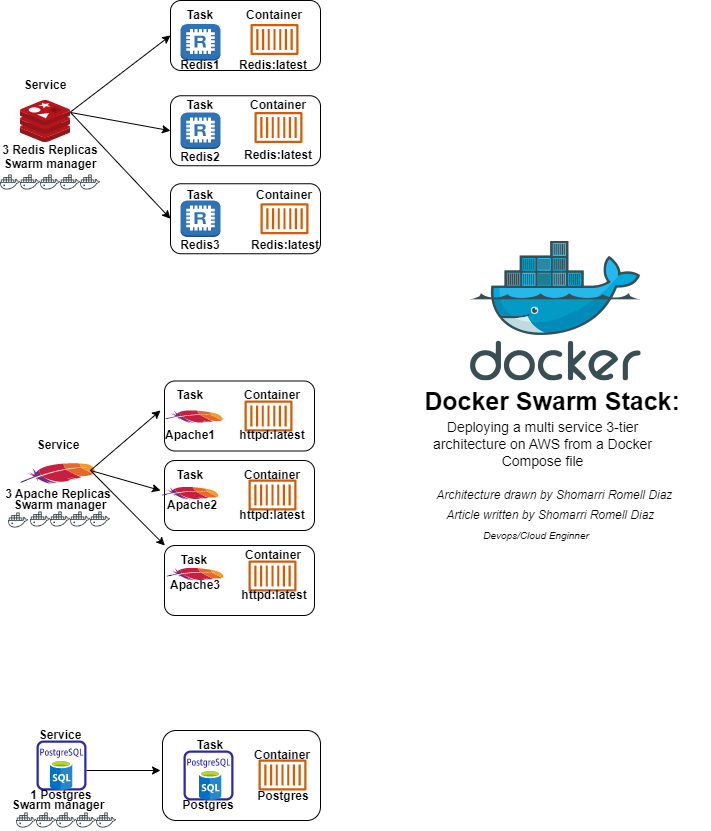
Think of it as an advanced way to deploy and manage multiple services (like web, db, cache) together as one unit.
Why Use?
| Multi-Service | Runs multiple services together (e.g., WordPress + MySQL) | ||||
Scalable |
Easy to scale services | ||||
| Declarative | Infrastructure as code (IAC) | ||||
| Organized | Groups services logically under one stack name |
Structure of a Stack
yamlversion: "3.9"
services:
web:
image: nginx
ports:
- "80:80"
deploy:
replicas: 3
image: mysql
environment:
MYSQL_ROOT_PASSWORD: root
deploy:
placement:
constraints: [node.role == manager]
Deploy a Stack (Step-by-Step)
Step 1: Create a docker-compose.yml
yamlversion: "3.9"
services:
web:
image: nginx
ports:
- "8080:80"
deploy:
replicas: 2
Step 2: Deploy the Stack
bashdocker stack deploy -c docker-compose.yml mystack
This creates a stack named mystack with the defined services.
Tips & Best Practices
| Tip | Description |
|---|---|
| Automate | Set up cron jobs to backup volumes and swarm state regularly |
| Replicate | Keep at least 3 manager nodes to protect raft consensus |
| Store Offsite | Save backups to cloud or remote server |
| Secure | Protect backups – they may include sensitive data |
Summary
| Task | How |
|---|---|
| Backup Swarm | Backup /var/lib/d/swarm (manager nodes only) |
| Backup Volumes | Use tar inside a container to backup volume contents |
| Restore Swarm | Extract swarm data to the same location |
| Restore Data | Create volume and restore tar into it |
Conclusion
In conclusion, Docker Swarm Visualizer is an excellent solution for developers and system administrators who want to manage clusters more effectively. With Swarm Visualizer, it becomes easy to monitor services, scale applications, and deploy stacks in a user-friendly way. Unlike traditional command-line operations, Swarm Visualizer provides clear insights into cluster activity, making the workflow faster and more reliable.
By integrating Swarm Visual into your development or production environment, you can ensure better visibility, quicker troubleshooting, and enhanced efficiency. Whether you are setting up new services or restoring backups,r Swarm Visualizer simplifies every task. Overall, adopting Swarm Visualizer is a smart choice for anyone who wants to take full advantage of clustering power.
For More Learn Click Here
For more related references Click Here
Learn the DevOps to start click here
DevOps Part -3